How to Check Your JAMB Admission Status on CAPS (2026 Guide)
Category: Education | Author: NaijaToday Desk | Published: Sat Jul 04 2026
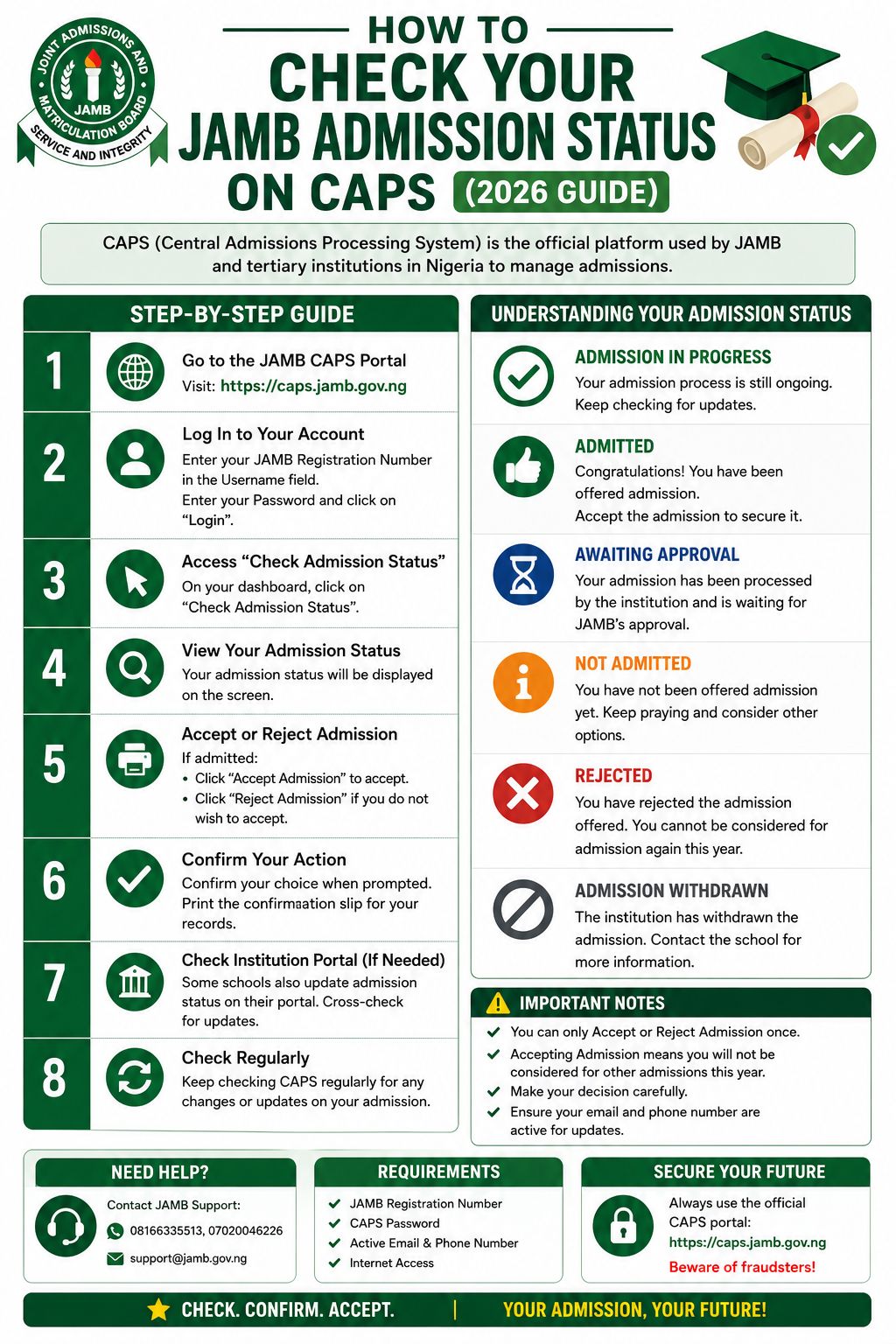
Post-UTME is done — now the real waiting begins. Here's exactly how to check, accept, or reject your admission on JAMB CAPS before you lose your spot.
How to Check Your JAMB Admission Status on CAPS (2026 Guide) Your school can call you, send a letter, or even collect your school fees — but until it shows on CAPS and you accept it there, your admission is not official. Every year, some candidates find out the hard way that a department's phone call or a notice board posting isn't the same as an actual admission. JAMB has been clear and consistent on this point: any admission offered outside of CAPS is not recognised , no matter how official it looks or feels. This guide walks through exactly how to check your status, what each message means, and how to properly accept an offer so you don't lose it by accident. What CAPS Actually Is CAPS (Central Admissions Processing System) is JAMB's official platform for coordinating admissions across every university, polytechnic, and college of education in Nigeria. Universities recommend candidates through CAPS, JAMB reviews and finalises the offer, and only then does it become a real, valid admission. It's accessed through the JAMB e-Facility portal . Step-by-Step: How to Check Your Status 1. Go to the official JAMB e-Facility portal: efacility.jamb.gov.ng 2. Enter the email address and password you used during JAMB registration — note this is your JAMB password, not your Gmail or email account password 3. Complete the CAPTCHA if one appears 4. Once logged in, locate "Check Admission Status" or "CAPS" on your dashboard 5. Click through to "Admission Status" in the sidebar or menu 6. Select the relevant examination year and, if prompted, enter your JAMB registration number 7. Your current status will be displayed The Single Most Common Problem — Fix This First If you're checking on your phone using Chrome and the page loads as a blank "Welcome" screen with no sidebar or options visible, you're in mobile view , and the admission status menu is hidden. This causes a lot of unnecessary panic. The fix: tap the three dots in your browser's top-right corner, select "Desktop site" , and the full CAPS interface — including the sidebar and your actual status — will load properly. What Each Status Message Means | Status | What It Means | What To Do || | "Congratulations — You Have Been Offered Provisional Admission" | JAMB has approved your admission | Accept it immediately through CAPS | | "Admission in Progress" | Your institution hasn't concluded its process yet | Keep checking regularly — no action needed yet | | "Not Admitted" | You haven't been considered yet for this institution | Explore other options — a different course, institution, or JAMB's change o Admission decisions are processed in